

Microsoft 365 unlocks modern ways of working. No matter if you’re working from home or if there’s an emergency while you’re away, you can have the peace of mind that you’ve got the tools to help you adapt from wherever you are. Whether you’re using a laptop or your mobile device, you can easily attend meetings online, share Office files, co-author in real time, and be productive from anywhere.
Collaborate with select peers

If you want others to edit with you, you can easily share files and collaborate with trusted peers for a fresh perspective. When you work together this way, only those selected people can access and edit shared files. Later, you can always share it with a team when you feel like it’s ready!
- Collaborate as a team

Collaboration as a team means having as little friction as possible. You want to seamlessly build ideas, organize files, attend meetings, and collaborate with others. With Microsoft Teams, everyone can work together as one—it doesn’t matter if someone is working remotely or in a different time zone, you’ll get it done.
2.Start in the cloud
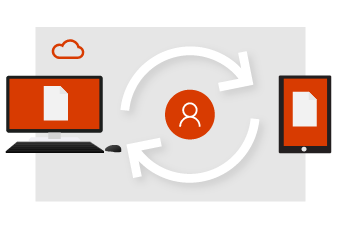
When you work with your files in OneDrive, you’ve got a foundation to share, edit together, and collaborate. No more emailing attachments, no more juggling multiple versions, and no longer restricted to your office computer.
- Save your file to OneDrive and access it anywhere using the browser or office app.
- Share a file from your OneDrive to specific people or use a link.
- Rest easy your files are safe and secure.
- Always have the most up-to-date version.
3.Start as a team
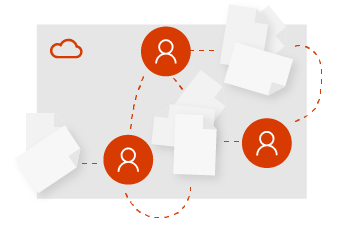
From home, the office, or across the globe, staying in the loop starts with Microsoft Teams. A team can be as formal or flexible as you need it to be. Create a team for everyone who shares the same manager, or create a team for a special project. With Microsoft Teams, you’ll have a central place in the cloud to store files, communicate, and collaborate.
- All your team files, chats, and more in one place.
- Confidently schedule and attend meetings online with anyone.
- Securely work from anywhere with the Office and Microsoft Teams mobile apps.

Real-time co-authoring
Gone are the days where only one person can work in a file at a time. When you need help on a presentation, you can invite trusted peers to help you get it into shape. This means that when you work on a file, so can they. You’ll see their changes and they’ll see yours—as you make them! This is co-authoring with Microsoft 365.
Real-time everything
Your team was invited to present at a conference, so planning starts early in Microsoft Teams. Build ideas freely and naturally in a conversation with your team. Create the PowerPoint directly within Teams where everyone can easily access it, add their content, and edit the slides together at the same time.
Gone are the days where only one person can work in a file at a time. When you need help on a presentation, you can invite trusted peers to help you get it into shape. This means that when you work on a file, so can they. You’ll see their changes and they’ll see yours—as you make them! This is co-authoring with Microsoft 365.
- Use @mentions in comments to get someone’s attention.
- Edit across different devices and see who’s in your file.
- See changes made by others and see what’s happened while you were away.
Real-time everything
Your team was invited to present at a conference, so planning starts early in Microsoft Teams. Build ideas freely and naturally in a conversation with your team. Create the PowerPoint directly within Teams where everyone can easily access it, add their content, and edit the slides together at the same time.
- Let ideas flow in a real-time, chat-based workflow.
- Use @mentions in comments to get someone’s attention.
- Collaborate with teammates in the same file at the same time.

Share at will
If you’ve been working on a proposal with others, you can always stop sharing the file at any time. This means that you have total control over who can view, edit, and access your OneDrive files. When you feel like it’s ready to be shared with a larger team, you can easily upload it to Microsoft Teams or a team site.
Share and present with Microsoft Teams
You can always add more people to your Microsoft Teams, such as reviewers to give final approval and feedback. Now that you’ve worked with your team and have a finished presentation, it’s time to get ready for the big conference. Using the calendar in Microsoft Teams, you can schedule a meeting online and easily share the link with others. This way, you can present at the conference and also present online for attendees who can’t make it in person.
Get Microsoft 365 for business with us.
If you’ve been working on a proposal with others, you can always stop sharing the file at any time. This means that you have total control over who can view, edit, and access your OneDrive files. When you feel like it’s ready to be shared with a larger team, you can easily upload it to Microsoft Teams or a team site.
- Manage who your files are shared with.
- Share a OneDrive file to your team so everyone can access it.
- Use Microsoft Teams to meet online, then screen share and present your work.
Share and present with Microsoft Teams
You can always add more people to your Microsoft Teams, such as reviewers to give final approval and feedback. Now that you’ve worked with your team and have a finished presentation, it’s time to get ready for the big conference. Using the calendar in Microsoft Teams, you can schedule a meeting online and easily share the link with others. This way, you can present at the conference and also present online for attendees who can’t make it in person.
- Invite others to your team to give input or feedback.
- Share files with stakeholders outside of your team.
- Use Microsoft Teams to meet online, then screen share and present your work.
Get Microsoft 365 for business with us.